Ostatnia aktualizacja 30.03.2026
Cloud storage is comfortable. This comfort came with trade-off → your data is on someone else machine. My post covers personal “how to encrypt files/directories on linux” snippet, also it demonstrates my security hygiene.
How this protects you?
Encrypting before upload primarily reduces impact from:
- cloud account compromise (attacker can copy files, but cannot read plaintext without the passphrase)
- accidental public sharing / exposed links or buckets
- provider-side access within the limits of the provider’s controls
- secondary leaks (backups, logs, or third-party handling of stored blobs, including insider misuse risk - low probability, high impact)
It does not protect against:
- malware or an attacker already on your machine before encryption
- weak or reused passphrases
- metadata you still reveal (the outer filename, timestamps, approximate size), unless you take extra steps
Assume the folder you want to upload is named upload/.
Linux
Tools:
tarfor archivinglz4for fast compressiongpg(GnuPG) for encryption
1) Archive the folder
This keeps the folder structure in one file:
tar -cf cloud_upload.tar upload/2) Compress (lz4)
Compression can reduce upload size and makes later encryption faster (less data):
lz4 cloud_upload.tar cloud_upload.tar.lz43) Encrypt (GPG symmetric, AES-256)
Symmetric encryption is the simplest “one file, one passphrase” approach:
gpg -c --cipher-algo AES256 cloud_upload.tar.lz4You’ll be asked to enter the passphrase twice. If you mistype, GPG will reject it:
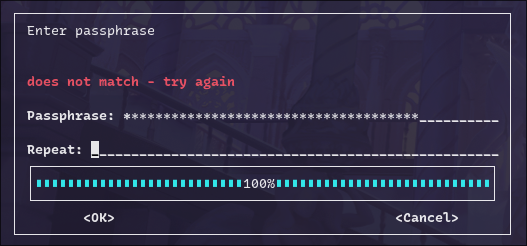
Encryption run example:
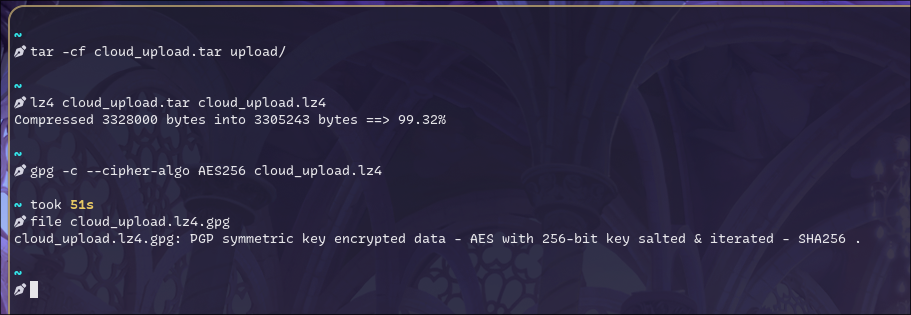
Result: cloud_upload.tar.lz4.gpg (this is what you upload to cloud).
Before uploading, generate and save a checksum. This gives you a fixed reference so you can later prove the file was not corrupted or modified during transfer or storage.
4) (Recommended) Record a checksum
Checksums are cheap integrity insurance, especially after downloads:
sha256sum cloud_upload.tar.lz4.gpg > cloud_upload.tar.lz4.gpg.sha256Upload both the .gpg file and the .sha256 file.
Verify what you created
A quick sanity check is to inspect the packet headers (this does not decrypt the content):
gpg --list-packets cloud_upload.tar.lz4.gpgYou should see the cipher listed (e.g., AES256) and “encrypted with 1 passphrase”:
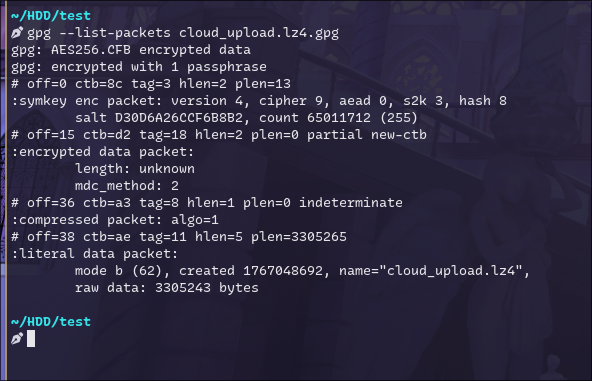
you can also type:
file cloud_upload.tar.lz4.gpgDecryption
After downloading your encrypted asset, verify the checksum first:
sha256sum -c cloud_upload.tar.lz4.gpg.sha256Then decrypt, decompress, and extract:
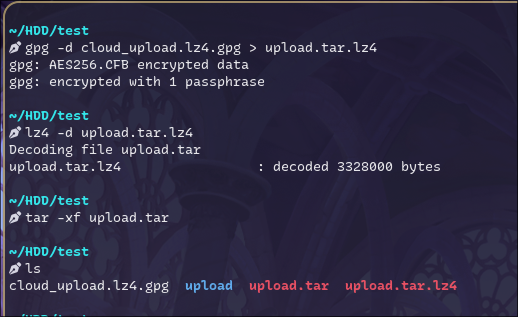
gpg --decrypt cloud_upload.tar.lz4.gpg > upload.tar.lz4
lz4 -d upload.tar.lz4
tar -xf upload.tar
Example run:
About “no passphrase prompt” during decryption
If you decrypted once, GnuPG may cache your passphrase via gpg-agent. That can make subsequent decryptions succeed without showing a prompt—nothing is “wrong”; it’s expected behavior.
If you want to confirm the prompt really appears (e.g., before documenting your process), kill the agent and retry:
gpgconf --kill gpg-agent
gpg --decrypt cloud_upload.tar.lz4.gpg > /dev/null
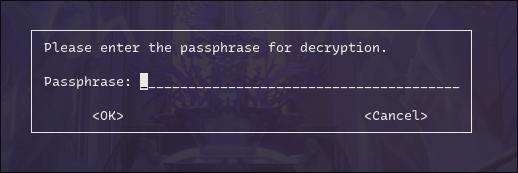
You should now see a pinentry prompt:
Practical hygiene
- Use a strong, unique passphrase (password manager is fine).
- Keep the plaintext
upload/directory local-only; upload only the.gpgartifact. - Consider naming conventions that don’t leak sensitive details (encrypted files can still expose filenames unless you choose to avoid them).